Archive for the ‘Photoshop Tutorials, High Dynamic Range (HDR), Double Exposure, Adobe Camera Raw Post Processing’ Category

Photoshop, Adobe Camera Raw, Lens Corrections, Camera Calibration

This is a continuation of seven articles on Photoshop CS4, Adobe Camera Raw.

White Balance, Targeted Adjustment, Crop, Straighten, Spot and Red Eye Removal
Adjustment Brush, Graduated Filter, Preferences        The Histogram, Basic Adjustments
Curves, Sharpening, Noise Reduction        Grayscale, Black And White, Split Toning
Lens Corrections, Camera Calibration    Examples Of Usage

Lens Corrections Tab

The lens correction Tab offers fixes to some of the common lens performance issues. Some of these lens performance issues are more common with cheaper lenses.

Lens Corrections

Chromatic Aberation

Here options are available to correct the following issues.

  • Fix Red/Cyan Fringe
  • Fix Blue/Yellow Fringe
  • Defringe Options – Off/Highlight Edges/All Edges

Some of the above lens problems become more evident with subjects closer to the edge of the lens. If you enlarge your image to 100% these fringing issues will become more evident.

Defringe Options – Off/Highlight Edges/All Edges

Lens Vignetting

Lens vignetting is characterized by darkening around the corners and edges of a lens, the following settings are available to correct these issues.

  • Amount
  • Midpoint

Post Crop Vignetting

Post crop vignetting can be corrected using these options.

  • Amount
  • Midpoint
  • Roundness
  • Feather

Camera Calibration Tab

The camera Calibration Tab enables special profiles to be implemented to acheive appropriate results. These profiles are quite a specialist application.

Camera Calibration

Camera Profile

Some camera profiles available are as follows. Some of these may be worth trying.

  • ACR4.6
  • Adobe Standard
  • Camera D2X Mode 1
  • Camera D2X Mode 2
  • Camera D2X Mode 3
  • Camera Landscape
  • Camera Neutral
  • Camera Portrait
  • Camera Standard
  • Camera Vivid

Also additional options are available as shown below.

Shadows – Tint

Red Primary – Hue/Saturation

Green Primary – Hue/Saturation

Blue Primary – Hue/Saturation

Presets

This Tab enables you to store settings so that they can be applied to other images. This is really only appropriate if all images are very similar. Click on the icon at the right of the Presets header and the available options will open. You  can use a selection of image settings, you can also save the current settings or load previously saved settings.

Snapshots

The Snapshots feature lets you save adjustments you have made and save them for future use. Too save a snapshot click the icon at the bottom of the Snapshot sidebar and give the Snapshot a name. These can be retreived and used at a later time.

This article is continued in seven parts as follows.

White Balance, Targeted Adjustment, Crop, Straighten, Spot and Red Eye Removal
Adjustment Brush, Graduated Filter, Preferences        The Histogram, Basic Adjustments
Curves, Sharpening, Noise Reduction        Grayscale, Black And White, Split Toning
Lens Corrections, Camera Calibration    Examples Of Usage

Photoshop, Adobe Camera Raw, Grayscale, Black And White, Split Toning

This is a continuation of  seven articles on Photoshop CS4, Adobe Camera Raw.

White Balance, Targeted Adjustment, Crop, Straighten, Spot and Red Eye Removal
Adjustment Brush, Graduated Filter, Preferences        The Histogram, Basic Adjustments
Curves, Sharpening, Noise Reduction        Grayscale, Black And White, Split Toning
Lens Corrections, Camera Calibration    Examples Of Usage

Hue/Saturation/Luminance (HSL)/Grayscale Tab

With this Tab there is an option to retain the color or to convert to Grayscale, the following needs to be noted in working with this Tab.

  • Hue – Hue changes the color
  • Saturation – Increases or decreases the color
  • Luminance – Luminance only lightens or darkens the colors

HSL/Grayscale

Here Adobe Camera Raw breaks the image down into eight colors as follows and each can be adjusted seperately.

  • Reds
  • Oranges
  • Yellows
  • Greens
  • Aquas
  • Blues
  • Purples
  • Magentas

Any of the above colors can be reduced or increased in the image. The images below show an original image, an image with adjusted colors and also an image which has been canverted to Grayscale (Black and White or Monochrome).

Original Image

Color Adjusted Image

Grayscale Image

 Split Toning Tab

Split Toning is a process where an image is toned with two different colors. One color to affect the darker tones and the other color to affect th lighter tones.

Split Toning

The following adjustments are available in the menu.

  • Hue – Hue changes are available seperately for the highlights and shadows.
  • Saturation – Saturation changes are available seperately for the highlights and shadows.
  • Balance – The Balance slider determines what are highlights and what are shadows and acts as a balance between them.

The following image shows an effect af applying split toning to an image. As can be seen some unreal effects can be obtained.

Split Toned Image

This article is continued in seven parts as follows.

White Balance, Targeted Adjustment, Crop, Straighten, Spot and Red Eye Removal
Adjustment Brush, Graduated Filter, Preferences        The Histogram, Basic Adjustments
Curves, Sharpening, Noise Reduction        Grayscale, Black And White, Split Toning
Lens Corrections, Camera Calibration    Examples Of Usage

Photoshop, Adobe Camera Raw, Curves, Sharpening, Noise Reduction

This is a continuation of seven articles on Photoshop CS4, Adobe Camera Raw.

White Balance, Targeted Adjustment, Crop, Straighten, Spot and Red Eye Removal
Adjustment Brush, Graduated Filter, Preferences        The Histogram, Basic Adjustments
Curves, Sharpening, Noise Reduction        Grayscale, Black And White, Split Toning
Lens Corrections, Camera Calibration    Examples Of Usage

Tone Curve Tab

The Tone Curve can give a large amount of tonal variation in the image to obtain a satisfying image.

Parametric Curve

The Parametric Curve Tab has four sliders below it to adjust the shape of the curve. The adjustments available are as follows.

  • Highlights – Adjusts the highlights
  • Lights – Adjusts the lighter tones
  • Darks – Adjusts the dark tones
  • Shadows – Adjusts the darker shadows


Tone Curve Parametric

 The parametris sliders have their limitations in the ranges provided and where this is the case, the adjustments below can be implemented using the point curve.

Point Curve

The point curve can simply be adjusted by clicking on the curve and moving it. It is far more flexible and provides a wider range of adjustment than the Parametric Curve.

Tone Curve - Point Curve

Detail Tab

Sharpening

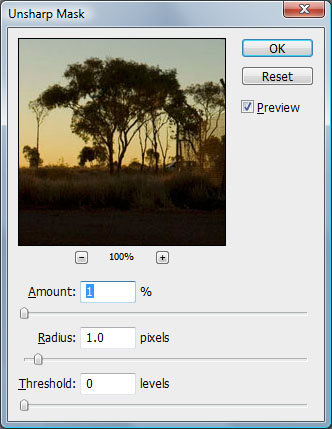
Sharpening, sometimes called unsharp Masking, is a process where the edges of the image are searched for and the light side of the edges are lightened and the dark side of the edges are darkened. When sharpening it is best to view the image at 100%.

  • Amount -  The Amount slider determines how much of the Unsharp Masking is applied to the image.
  • Radius – The radius slider determines how far each side of the contrasting edges the sharpening will be applied. This is measured in pixels width.
  • Detail – The Detail slider when set to low levels emphases the sharpening on blured edges, when set to higher levels it emphasises the sharpening on textures.
  • Masking – The Masking slider restricts the sharpening to the strongest edges and will not sharpen on blured areas or skys where there is little contrast.

Detail - Sharpening/Noise Reduction

Noise Reduction

The noise reduction reduces the grainy pattern in images. Noise reduction is generally only required at higher ISO settings. Again when applying noise reduction the image should be viewed at 100%. Too much noise reduction can degrade the image.

  • Luminance – Applies noise reduction to the luminance content of the image.
  • Color – Applies noise reduction to the color content of the image.


This article is continued in seven parts as follows.

White Balance, Targeted Adjustment, Crop, Straighten, Spot and Red Eye Removal
Adjustment Brush, Graduated Filter, Preferences        The Histogram, Basic Adjustments
Curves, Sharpening, Noise Reduction        Grayscale, Black And White, Split Toning
Lens Corrections, Camera Calibration    Examples Of Usage

Photoshop, Adobe Camera Raw, The Histogram, Basic Adjustments

This is a continuation of seven articles on Photoshop CS4, Adobe Camera Raw.

White Balance, Targeted Adjustment, Crop, Straighten, Spot and Red Eye Removal
Adjustment Brush, Graduated Filter, Preferences        The Histogram, Basic Adjustments
Curves, Sharpening, Noise Reduction        Grayscale, Black And White, Split Toning
Lens Corrections, Camera Calibration    Examples Of Usage

The Histogram

The Adobe Camera Raw Histogram is generally an indication of correct exposure. The left side of the Histogram should indicate pure black and the right side should indicate pure white. A perfect Histogram will not have any of the Histogram content extending beyond the right or left edges. Some contact with the edges is sometime unavoidable, however if it is too much some of the content of the image will be lost.

Adobe Camera Raw Histogram

RGB Values

Also underneath the Histogram the RGB (Red, Green, Blue) values will be indicated for the specific position of the mouse at that time.

Camera Settings

Some camera settings are also indicated under the Histogram as follows:

  • Aperture
  • Shutter Speed
  • ISO
  • Lens focal length

Basic Tab

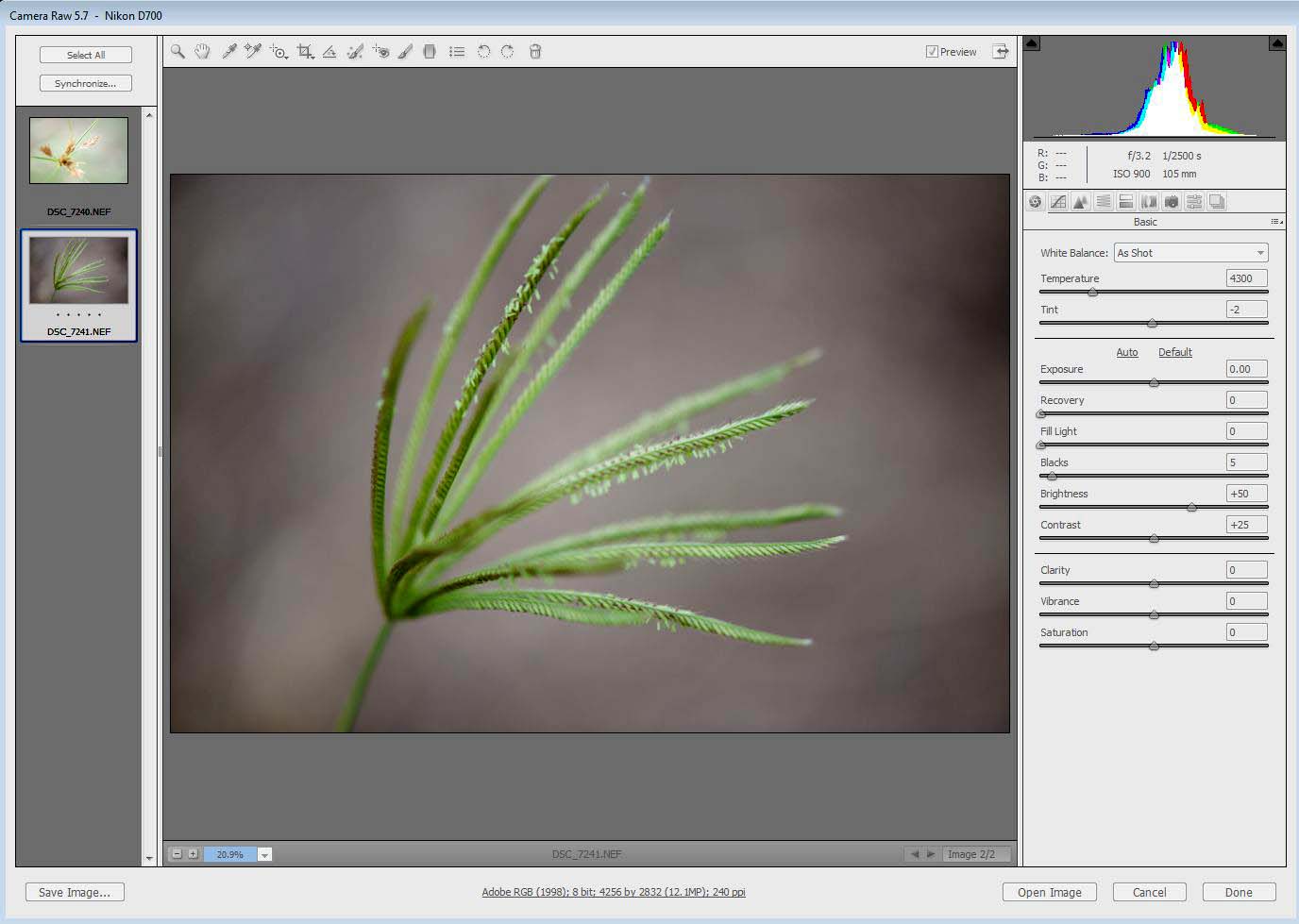
I will now outline the adjustment which are available when the Basic Tab is selected. A screen shot of the Basic Tab options nis shown below.

Basic Tab Adjustments

White Balance

If your original image is shot in raw it will give you much more flexibility in adjusting the White Balance. The following preset options are available for adjusting the White Balance.

  • As Shot – This is the White Balance suggested by the camera.
  • Auto – With this setting Adobe Camera Raw will make a suggested setting for you.
  • Daylight – Adjusts for daylight.
  • Cloudy – Adjusts for cloudy lighting.
  • Shade – Adjusts for shade.
  • Tungsten – Adjusts for tungsten color temperature lighting.
  • Fluorescent – Adjusts for fluorescent colored lights.
  • Flash – Adjusts for electronic flash color temperature.
  • Custom -The custom setting allows you to use the two sliders (Temperature/Tint) below the presets to fine tuning of the Color Balance.

Also do not forget that there is another Color Balance adjustment on the tool bar at the top of the Adobe Camera Raw window.

Temperature

The temperature slider is a fine tuning adjustment to adjust the Color Temperature to a specific value in Degrees which is indicated above the temperature slider.

Tint

The Tint slider fine tunes the white balance to compensate for a green or magenta tint. Decreasing the Tint to add green to the image and increasing the Tint to add magenta to the image.

Exposure

In general the exposure from your camera should be just about perfect, however there is a capability with the Exposure slider to to make finely tuned Exposure adjustments.

Recovery

The Recovery slider works on the highlights of the image and is great to bring out details of burnt out highlights. It does this by shifting to the left on the histogram the highlights.

Fill Light

The Fill Light slider is very effective to fill the shadows and by adjusting this slider more detail can be brought out in the dark shadow areas of the image. Using both the Recovery and Fill Light together, effectively pinches the histogram together at each end and can give unrealistic tones in the image when used excessively.

Blacks

This slider is to control the amount of Black in the image. The default Adobe setting is 5, any higher value will create more black in the image, however be carefull that it is not adjusted too high.

Brightness

The Brightness slider is different to the exposure slider in that with the brightness slider the entire histogram is moved to the right or left. It is best to set the shadow and highlight detail before using the Brightness slider.

Contrast

This is an importants slider to get right, but as you adjust the slider keep your eye on the histogram to ensure that you do not clip any information (the shadows and highlights) from the image.

Clarity

The clarity slider will give an image the appearance that it has greater sharpness and detail. It works on the edges of detail in the image and lightens the light side of edges and darkens the dark side of edges, thus increasing the contrast between the edges. In using many of these sliders it is best to view the image at 100% to get the best results with the adjustment.

Vibrance

The Vibrance tool is a color saturation adjustment tool but it  increases the color saturation of highly saturated colors less than it increases the color saturation of lower saturated colors.

Saturation

The saturation adjustment increases the saturation of all colors to an equal degree.

This article is continued in seven parts as follows.

White Balance, Targeted Adjustment, Crop, Straighten, Spot and Red Eye Removal
Adjustment Brush, Graduated Filter, Preferences        The Histogram, Basic Adjustments
Curves, Sharpening, Noise Reduction        Grayscale, Black And White, Split Toning
Lens Corrections, Camera Calibration    Examples Of Usage

Photoshop, Adobe Camera Raw, Adjustment Brush, Graduated Filter, Preferences

This is a continuation of  seven articles on Photoshop CS4, Adobe Camera Raw.

White Balance, Targeted Adjustment, Crop, Straighten, Spot and Red Eye Removal
Adjustment Brush, Graduated Filter, Preferences        The Histogram, Basic Adjustments
Curves, Sharpening, Noise Reduction        Grayscale, Black And White, Split Toning
Lens Corrections, Camera Calibration    Examples Of Usage

Adjustment Brush – The Adjustment Brush Tool is used to paint over an area you wish to change in the image. The brush has options for :

  • Size
  • Feather
  • Flow
  • Density

It also has check boxes for Auto Masking and for Showing the Mask.

Adustment Brush

The brush has various setting as follows from the sidebar. This is a selective tool for use in specific areas of the image. Various options are available in the sidebar as follows:

  • Exposure
  • Brightness
  • Contrast
  • Saturation
  • Clarity
  • Sharpness
  • Color Overlay
  • Auto Mask, limits the brush stroke to an area of similar color and tone

Graduated Filter – The Graduated Filter is used to make localised changes to the image. The filter is selected then dragged and dropped, then various options can be selected to change the image.

Graduated Filter

Preferences - Using the Preferences Box we can determine how Adobe Camera Raw will open various files. An example is to automatically open all JPEG,s and not just Raw files. This also applies to TIFF files.

Preferences


Rotate Counter Clockwise

- This option rotates the image 90 degrees counter clockwise. 

Rotate Clockwise – This option rotates the image 90 degrees clockwise.

Preview – The Preview option shaws the resulting image compared to the original image.

Fullscreen – The Full Screen option increases the window to full screen.

This article is continued in seven parts as follows.

White Balance, Targeted Adjustment, Crop, Straighten, Spot and Red Eye Removal
Adjustment Brush, Graduated Filter, Preferences        The Histogram, Basic Adjustments
Curves, Sharpening, Noise Reduction        Grayscale, Black And White, Split Toning
Lens Corrections, Camera Calibration    Examples Of Usage

Photoshop, Adobe Camera Raw, White Balance, Targeted Adjustment, Crop, Straighten, Spot and Red Eye Removal

This is an article of seven parts on Photoshop CS4, Adobe Camera Raw.

Adobe Camera Raw is one of the most popular raw converters. It is most desirable to capture your images in the raw format if you are aiming for thehighest quality images.

Adobe Camera Raw With Film Strip

When more than one image is processed at one time in Adobe Camera Raw the thumb nail images will appear on the left side of the window as shown above.

The screen shot above shows the basic Camera Raw functions. Along the top is a Tool Bar which is illlustrated below.

Camera Raw Toolbar

If you click on the above tool bar you will see the details. From left to right along the tool bar we have the following functions:

Zoom Tool – By clicking on the image we zoom in. By holding “alt” and clicking on the image we can zoom out. To return the zoom to 100%, double-click the Zoom tool.

Hand Tool – When the preview image is set at a zoom of greater than 100% the hand tool can be used to move the image within the window. The space bar can also be held down to move the image within the window. Double click on the Hand tool to fit the preview image to the window. On the bottom left hand corner of the preview window is an option to select the zoom level from a menu or from the – or + buttons.

White Balance -  The white balance tool is used by placing the tool on a grey area in the image and the white balance of the image will be automatically adjusted, this can be repeated until a satisfactory white balance is acheived. This tool is used to specify that an object is white or gray. Camera Raw can then determine the color of the light in which the scene was shot, and adjust the scene lighting automatically.

Color Sampler – The color sampler tool  lets you select up to 9 color samples to enable monitoring of the selected sample while changes are made to the image. This tool is a technical tool aimed to assist in color management with monitors etc.

Targeted Adjustment Tool – The Targeted Adjustment tool will enable  you to make tonal and color adjustments to the image by dragging directly on to the image. Firstly click on the toolbar and choose the type of correction you want to apply. There are options for the following:

  • Hue
  • Saturation
  • Luminance
  • Grayscale Mix

 Crop – The crop tool wil enable a simple cropping of the image. If required the crop can be cancelled by “esc”. There are options for various ratios as follows:

  • Normal
  • 1:1
  • 2:3
  • 3:4
  • 4:5
  • 5:7
  • Custom setting

Straighten – If the image is not level a straight line can be drawn using the Straighten tool along an object which should be horizontal and the image will automatically be straightened.

Spot Removal – When the spot Removal Brush is selected an option in the sidebar of the window will come up to enable a choice of  Heal or Clone, choose one.

Spot Removal

Then move the Radius slider right or left to increase or decrease the area affected by the tool, move the Opacity slider left to create a more transparent retouch. In the image, click the spot to be retouched. Two circles appear, a red circle shows the area being retouched, and a green circle indicates the source content for retouching. Either circle can be repositioned by draging within it. To increase or decrease the size of either circle, hover over the circle edge until the cursor becomes a double arrow, and then drag it.

Red Eye Removal - Choose the Red Eye Removal tool from the toolbar then drag a rectangle around the eye. It is generally best to create a rectangle that is slightly bigger than the iris of the eye.

Red Eye Removal

When you release the mouse button, the selection will reduce in size to the size of the red area. Modify the Pupil and Darken sliders to fine-tune the correction. This process is to be repeated for all the eyes in the image.

This article is continued in seven parts as follows.

White Balance, Targeted Adjustment, Crop, Straighten, Spot and Red Eye Removal
Adjustment Brush, Graduated Filter, Preferences        The Histogram, Basic Adjustments
Curves, Sharpening, Noise Reduction        Grayscale, Black And White, Split Toning
Lens Corrections, Camera Calibration    Examples Of Usage

Colorizing an Image

The Gate, Jondaryan Woolshed

The image above from the Jondaryan Woolshed, as captured was lacking in color and was nearly a monochrome image.

Images such as shown above can be vastly improved by adding some colour, in this image an improvement was acheived using the NIK software plug-in for Photoshop. The plug-in used is  NIK Color Efex Pro, this software has many options and in the case above a colorize option was used  together with a tonal contrast action to bring out some additional texture in the image. The NIK Color Efex Pro is also available as a plug-in for Nikon Capture NX software.

The image below was taken at a very high ISO (ISO6400) and ended up lacking a little color. The solution was to add some color to the image using Color Efex Pro with the colorize option.

The Pantry, Jondaryan Woolshed


Applying Tonal Contrast to Images

Bassalt Rocks, Fingal Headland, New South Wales

Tonal contrast actions in Photoshop give control over the contrast in the highlights, mid tones and also in the shadow areeas of images, each can be controlled for seperate adjustment.

Tonal contrast can be applied seperately to selected areas of the image or can be applied to the whole image. In the image above the tonal contrast has only been applied to the water area and in the image below the tonal contrast has been applied to the whole image.

Tonal contrast can be appled to a certain area of an image to bring attention to the centre of interest of the image.

Tonal contrast is also used to bring out texture in certain areas of the image, it can be very effective in bringing out texture in sand, water, timber and other similar features.

Tonal contrast can be applied using software from NIK. Versions are available for use as Photoshop plug-ins and also as a seperate module for Nikon Capture NX.

Surfers Paradise Beach

Multiple or Double Exposures

With todays digital photography technology, multiple exposures can be relatively easy to produce under controlled conditions.

Here Photoshop can come to the rescue.

Multiple exposures ar relatively easy to produce by using layers, selecting the areas around the image that you want to eliminate and then combining the layers. Some selections may need to be made and parts of an image cleard so that the other image can be seen.

Before combining the layers you may wish to make changes to some layers, for example in the image below the background layer has been diffused.

Daisies

Multiple exposure of a daisy superimposed on top of another daisy

In the multiple image below of the Daisy with a diffused green folliage background the background layer has been more diffused to isolate the daisy from the background and make it stand out.

Daisy

Raw Image Files and Processing

In general most Digital Single Lens Reflex (DSLR) cameras offer several options to record the image files. In general these formats are TIFF, JPG or RAW files.

RAW

The RAW image format files are unprocessed files retaining the original data from the camera sensor. The RAW file images are normally processed after the event into a JPG or TIFF format. Many cameras use different formats for their RAW file images. They are sometimes referred to as the digital negatives, as they are comparable to a negative in the world of film, the RAW file is the original data from the sensor, in an analogy that the film negative is the original of the scene captured on film.

TIFF

The Tagged Image File Format (TIFF) is an uncompressed, common format used for images. The format is a useful archive storage format due to its lossless characteristics. Files can be saved and resaved without loosing data. TIFF files are generally very large files compared to other formats but offer a high quality for permanent storage.

JPG

The JPG file format is a compressed format, with a trade off between the file size and the amount of compression applied to the file which can be adjusted by the user. The problem with the JPG format is that once the file is compressed some of the data is lost from the file forever and can never be recovered. This is one of the most common formats used by digital cameras for storage of images. However remember that once a JPG file is saved with any compression, some of the original data is lost and this happens every time a JPG file is saved. JPG files are very economical in terms of storage space.

Getting The Best Quality From Your Images

In order get the premium quality from your images, we regard it as preferable to take all images in RAW format, save a copy of the RAW images as archives and then process the RAW images on computer.

There are several reasons for this approach as follows:

You always have the original image to work on later if required, bearing in mind that raw processing software improves all the time and you may have the opportunity to go back to old raw images at some future point in time and reprocess them to acheive better quality.

The RAW image files will facilitate better processing to fix any issues with the files such as white balance issues, sharpening, contrast adjustments, improving dynamic range of the image etc.
A poorly exposed JPG image can be very difficult to rectify after it is taken. However, a RAW file with problems is far easier to rectify and improve with the RAW processing software.