by Geoff 13 May
1 Comment

Glasshouse Mountains Tone mapped
These images of the Glasshouse Mountains, have been photographed with a Nikon D2H camera and a wide angle zoom lens.
The above image has been tone mapped using Photomatix software, this software is very good for bringing out detail and texture in the image, it also improves the range of tones by using HDR (High Dynamis Range) techniques. In the above image it has really brought out the detail in the clouds and also in the foreground scenery.

Glasshouse Mountains Panorama
The above panorama image is a stitched image to take in the extreme wide vista of this scene.
In all the images here a Nikon DX camera has been used and a zoom lens at 20mm. With a DX camera a lens in the range is the Nikon 10-24mm lens which is very nice for capturing wide vistas, another excellent lens is the Nikon 17-55mm f/2 lens which covers a longer range.

Glasshouse Mountains
If using a FX camera with the full frame sensor then the ultimate lens is the Nikon 14-24mm f/2.0 wide zoom, this lens has superb performance for landscapes, 14mm is extremely wide on an FX sensor.
Irrespective of the lens used for landscapes like this, it is best to use a good tripod to get the sharpest images.
by Geoff 12 Sep
0 Comments

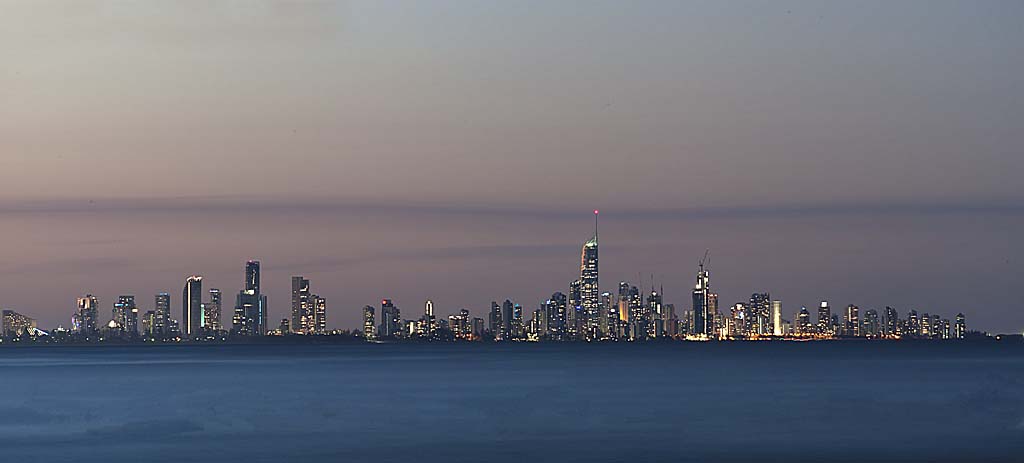
Surfers Paradise from Currumbin
The above image has been captured from the Currumbin beach, looking towards Surfers Paradise, I took this image at the following camera settings:
The images is a panorama of two images stitched together in Photoshop and it was quite dark when the image was captured. The reason I took the image at such a low shutter speed of 30 seconds, was to create a blurred effect over the water and in the clouds. The camera used was a Nikon D700. The image was taken after dark using a tripod and a remote cable release.
Even during daytime similar images can be captured, using a neutral density filter, so that the shutter speeds can be greatly reduced.
Night time is a great time to catch a panorama image. At this time the lighting is very subdued and even.
Always be prepared to get your camera out at night, with the capabilities of today’s cameras with high ISO, great night images can easily be captured.
The lighting just after dusk is generally excellent for exceptional lighting and sharp images can be obtained by using a tripod and cable release. A tripod was essential for the above image as the exposure was 30 seconds with a long 300mm lens.
by Geoff 26 Jun
2 Comments

Hawk At Sunset
This panorama of the sky with the hawk, has been captured from my back yard at sunset, so this proves that you do not have to go very far to get some very nice images. The panorama was stitched in the PTGui software. I find this software excellent for panormas as it blends the images together perfectly even when the two stitched images have slightly different exposures.
Normally when I am taking panoramas, I would use manual exposure mode, to ensure that all of the exposures are the same, but in the case of this image the camera was set to automatic, aperture priority mode and I did not have time to change it to manual mode, otherwise I would have completely missed the shot.
For more bird images please visit my Bird Gallery.
by Geoff 23 Jun
1 Comment

Blue Sunset, Lake Argyle
The above image has been captured at Lake Argyle in the Kimberlies, Western Australia. It is a composite image stitched together in PTGui software with post processing in Photoshop. Lake Argyle is situated near Kununurra on the western side of the Kimberly Ranges. There are beautiful sunset cruises on Lake Argyle to give the best views of this area.
Lake Argyle is Australias second largest artificially made lake by volume and forms an important part of the wetlands in the area of the east Kimberlies. The lake is on the Ord river and forms the basis of a major irrigation system for the surrounding area. There is also abundant wildlife around the lake with one of the major attractions being the freshwater crocodiles.
Capturing the wide expanses of the country is all about getting to use wide angle lenses and also widening your perspective by stitching panorama images together.
See more images from Lake Argyle in the Lake Argyle Gallery.